
Quiz Cat’s Result Webhook feature lets you automatically send quiz results to an external service whenever someone completes your quiz.
You can use this feature to send quiz data to other platforms, connect Quiz Cat to your own applications, or trigger workflows based on quiz results. What happens to the data after it is received depends on the service you connect to.
Before you begin:
The Analytics and Spreadsheet features are available to Quiz Cat Premium: Business and Elite customers only. Head here if you’d like to purchase.
Enabling the Result Webhook
To set up a Result Webhook:
Open your chosen quiz, as each quiz has its own webhook connection.
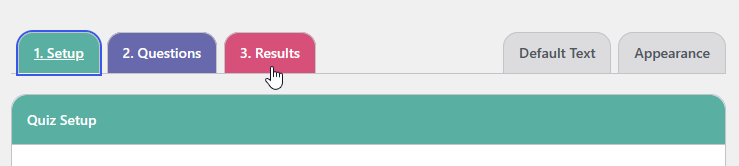
Find the 3.Results tab at the top of your quiz.
Scroll down to Result Webhook and set Enable Results Webhook to Yes.
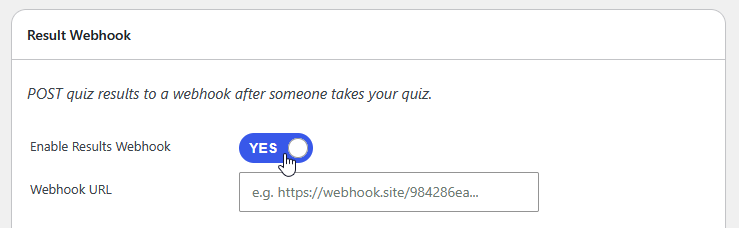
Enter your webhook endpoint URL in the Webhook URL field.
If required, add any extra parameters or headers for your chosen service.
Save your settings.
Once enabled, Quiz Cat will send a POST request containing the quiz results to your configured webhook URL when someone completes your quiz.
Webhook Settings
Webhook URL
Enter the URL provided by the service you want to receive your quiz results.
For example, a webhook URL might be provided by an automation platform, CRM, or your own application. Make sure the URL points to an endpoint that can receive POST requests.
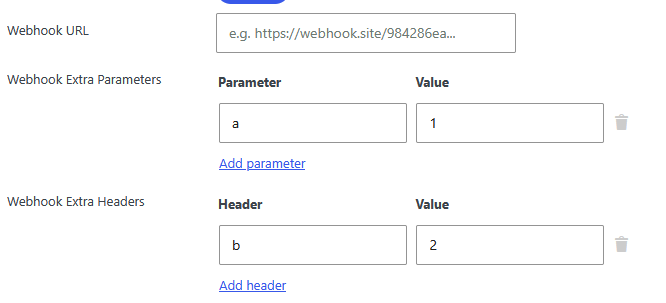
Webhook Extra Parameters
Use this section to include additional parameters with the webhook request.
Enter the parameter name in the Parameter field and its corresponding value in the Value field.
For example, if your receiving service requires an API key to identify your account, you may be able to add it here using the parameter name and value specified by that service.
Click Add parameter to include more parameters. Use the delete icon to remove a parameter you no longer need.
Webhook Extra Headers
Use this section to include additional HTTP headers with the webhook request.
Enter the header name in the Header field and its value in the Value field.
For example, if your receiving service requires an authorization header, it may ask you to provide a header such as Authorization with a corresponding token.
Only add parameters and headers required by your receiving service. Check that service’s documentation for the correct names and values.
Click Add header to include more headers. Use the delete icon to remove a header.
What Data Is Sent?
When a quiz is completed, Quiz Cat sends the quiz result and related information to your webhook URL.
Depending on the quiz and the information collected, the request can include:
- email: The quiz taker’s email address, if collected.
- name: The quiz taker’s name, if collected.
- consent_status: The recorded consent status.
- consent_msg: The consent message, if provided.
- result: The quiz result, including the score and result description.
- result_id: A unique identifier for the result.
- responses: The questions answered, the submitted answers, correctness information where applicable, and related question and response identifiers.
- quiz_id: The ID of the quiz.
- timestamp and timestamp_gmt: Timestamps associated with the quiz result.
- date: The recorded date and time of the result.
- a: An additional field included in the request.
Some fields may be empty or have different values depending on the quiz and the information submitted.
Example Webhook Data
The following is an example of the data sent to a webhook, shown in URL-encoded form:
email=anonymous%40example.com&name=Anonymous&consent_status=unknown&consent_msg=&result=1%2F1%3A+Grumpy+Cat&result_id=00000000-0000-0000-0000-000000000000&responses%5B0%5D%5Banswer%5D=No&responses%5B0%5D%5BisCorrect%5D=true&responses%5B0%5D%5BcorrectAnswer%5D=No&responses%5B0%5D%5Bquestion%5D=Can+cats+fly%3F&responses%5B0%5D%5Bid%5D=00000000-0000-0000-0000-000000000000&responses%5B0%5D%5Bresponse%5D=00000000-0000-0000-0000-000000000000&quiz_id=10000×tamp=0000000000×tamp_gmt=0000000000&date=YYYY-MM-DD+HH%3AMM%3ASS&a=1
The data is URL-encoded, so some characters appear as encoded values. For example, %40 represents @, and %3A represents a colon.
The receiving service may display or process this data in a more readable format.
Using Webhook Data in Other Services
Once your receiving service gets the quiz results, you can use its features to process the data or trigger other actions.
Depending on the service, you may be able to:
- Add quiz takers to a CRM or mailing list.
- Store quiz results in a database or spreadsheet.
- Trigger an automation based on a quiz result.
- Send the result to another application or your own system.
The available options depend on the service receiving the webhook and how you configure it.
Troubleshooting
If your quiz results are not reaching your receiving service:
- Make sure Enable Results Webhook is set to Yes.
- Check that the webhook URL is correct.
- Confirm that your receiving service is configured to accept POST requests.
- Check whether the service requires additional parameters or headers, and make sure these match its documentation.
- Check the receiving service’s webhook logs or request history, if available, to see whether it received the request.
If the issue continues, check the receiving service’s documentation for any requirements or restrictions that could prevent it from accepting the request.
Important Notes
- Quiz Cat sends the quiz results to the webhook URL you configure. How the data is used afterwards depends on the receiving service.
- Make sure you have the appropriate permission to collect and share any personal information sent through the webhook.
- Only send data to webhook URLs you trust, and protect any API keys or authentication tokens used in your configuration.
Need assistance with this or anything else? Feel free to contact our support team at https://fatcatapps.com/support/